Changelog

Every release of Proa, newest first. These are the same notes the app shows under What's new.

v1.0.0-alpha47

A new version editor

The version editor gives your store most of the screen and opens each edit in place of the list. Tests and customizations get new pages to match.

A new version editor

The version editor is where you change what a customization or a variant shows on your store. Open the editor now fills the window, with your edits on the left and your store on the right.

Your store keeps its desktop layout even in a narrow panel, scaled to fit. Type a path in the store bar to open another page. Save version sits at the top.
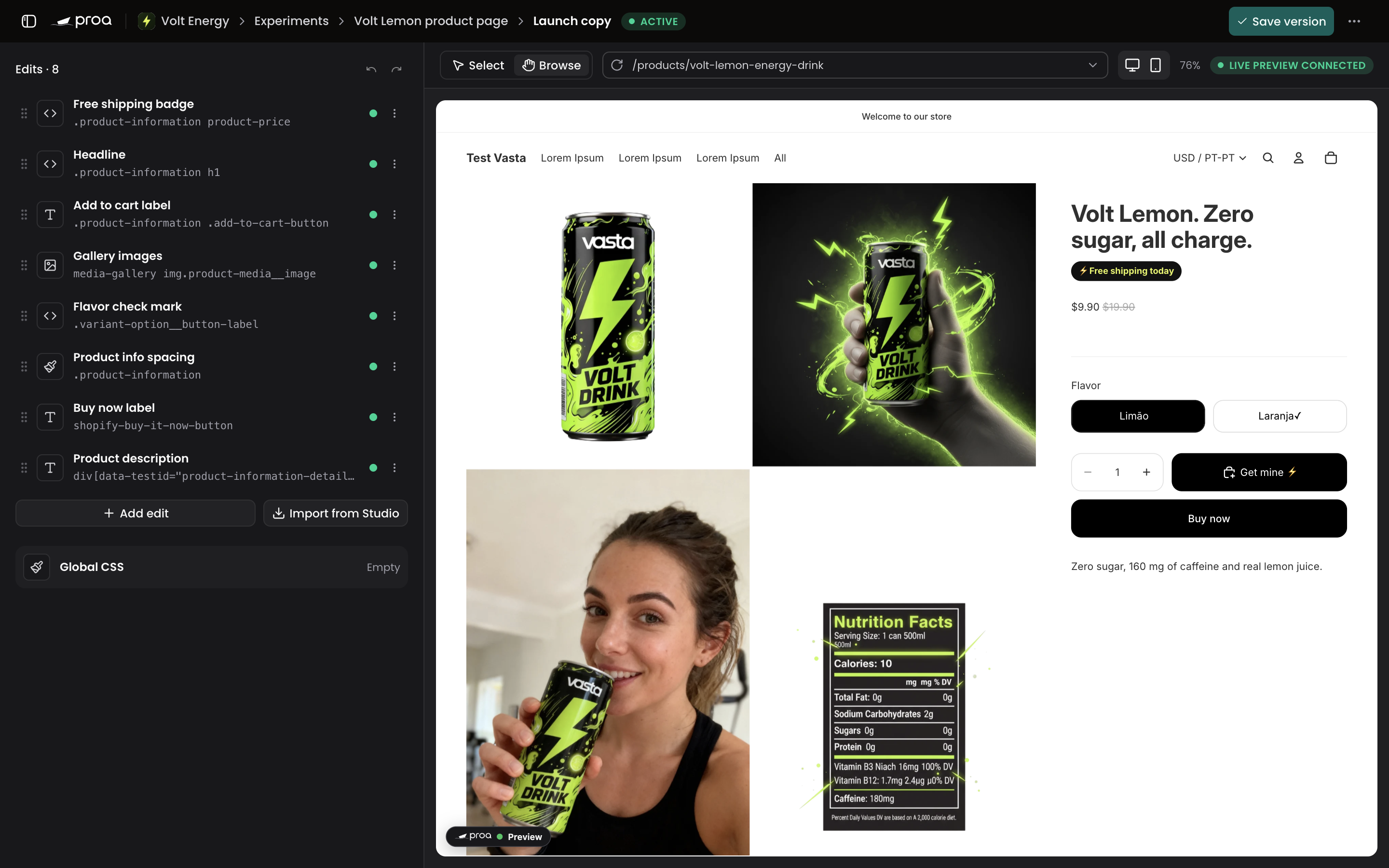
The version editor, with the list of edits on the left and the store on the right

Edits

Edits lists every change in the version. Click one and it opens in place of the list, with Edits to go back and arrows for the next one. Drag a row to reorder it. Its menu has Hide in preview, Duplicate and Delete.

Every edit has the same layout: name and type at the top, then the element, the content and Keep this edit if the page redraws. Apply to all matches is now under Advanced. In an HTML edit, Insert says where the HTML goes, as in "Before the element", and the edit's CSS sits right below it.

Change element shows what is around and inside the element you picked. Choose another one and the edit keeps what you wrote. Global CSS opens as its own screen, and Import from Studio sits next to Add edit.
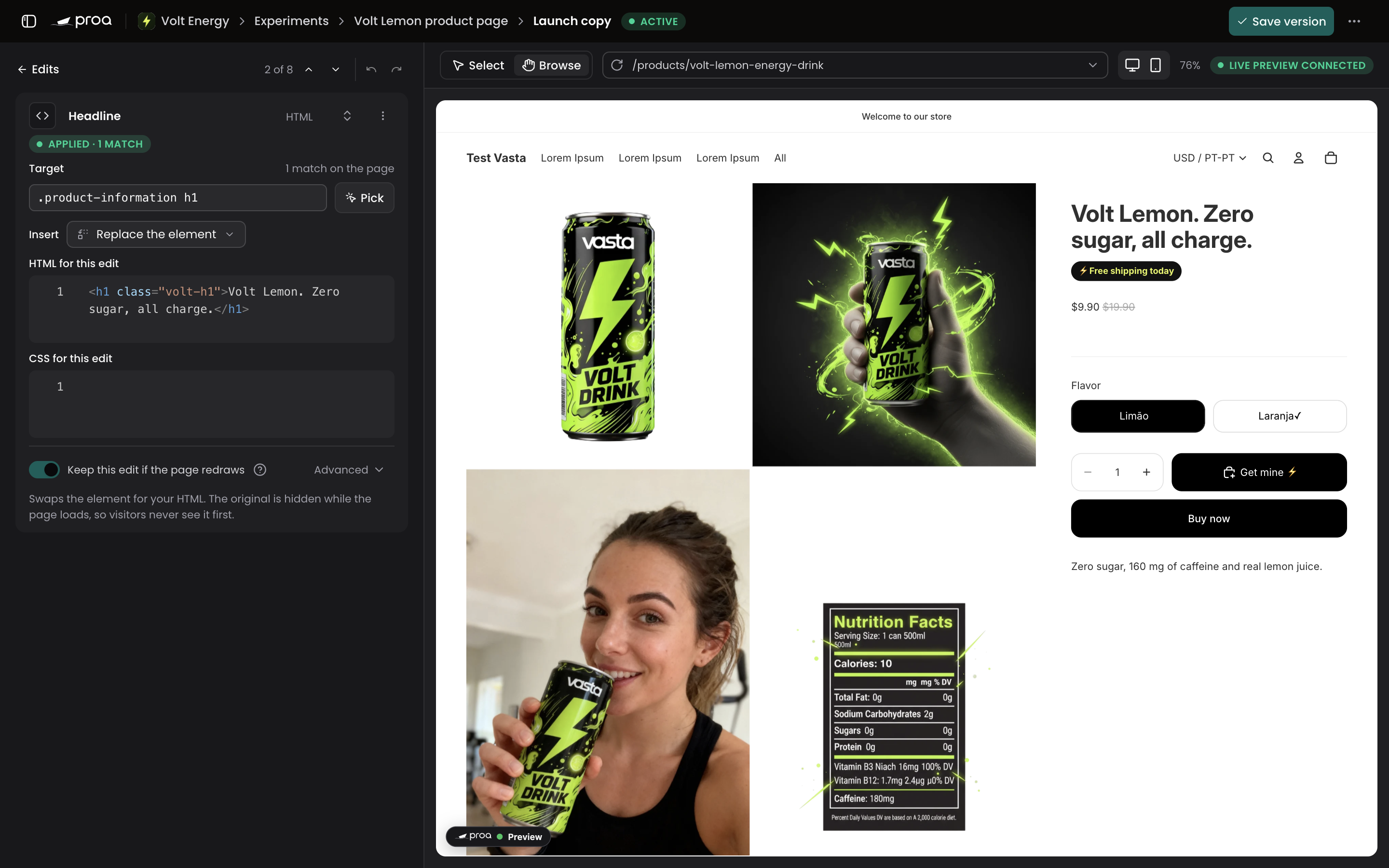
An HTML edit open in the editor, with its element, where the HTML goes and its CSS

Broken HTML and CSS

When the HTML or CSS of an edit looks broken, the edit lists each problem, such as <h1> is never closed. Its row in the list shows a warning too. You can still save the version.
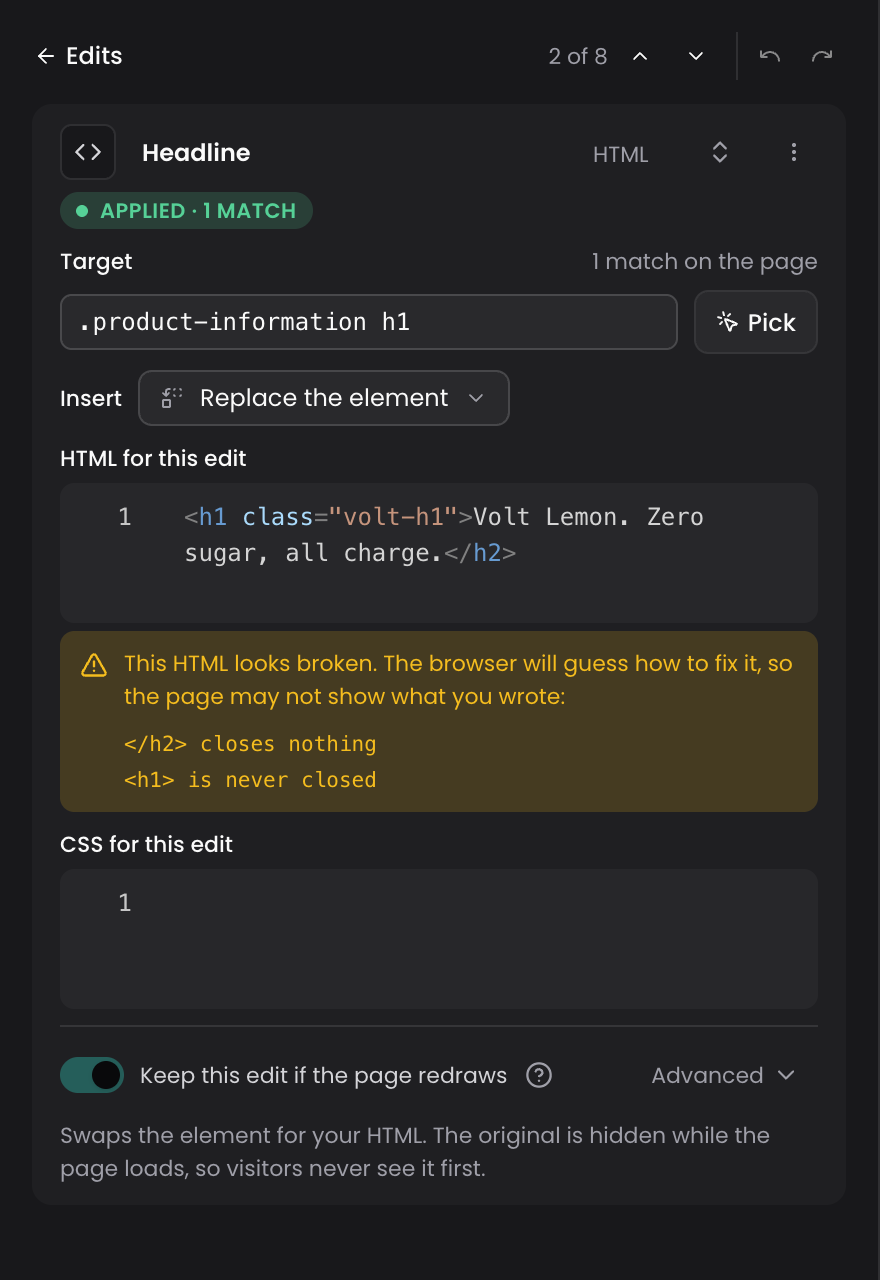
An HTML edit listing two problems under its HTML

Tests and customizations

A test now opens with its state and its actions at the top, then Variants, Where it runs, Measurement and Results. Each variant lives in its own row on Variants, with its versions and Open the editor. In Where it runs, pages, visitors, the split and the schedule each have a card with Edit.
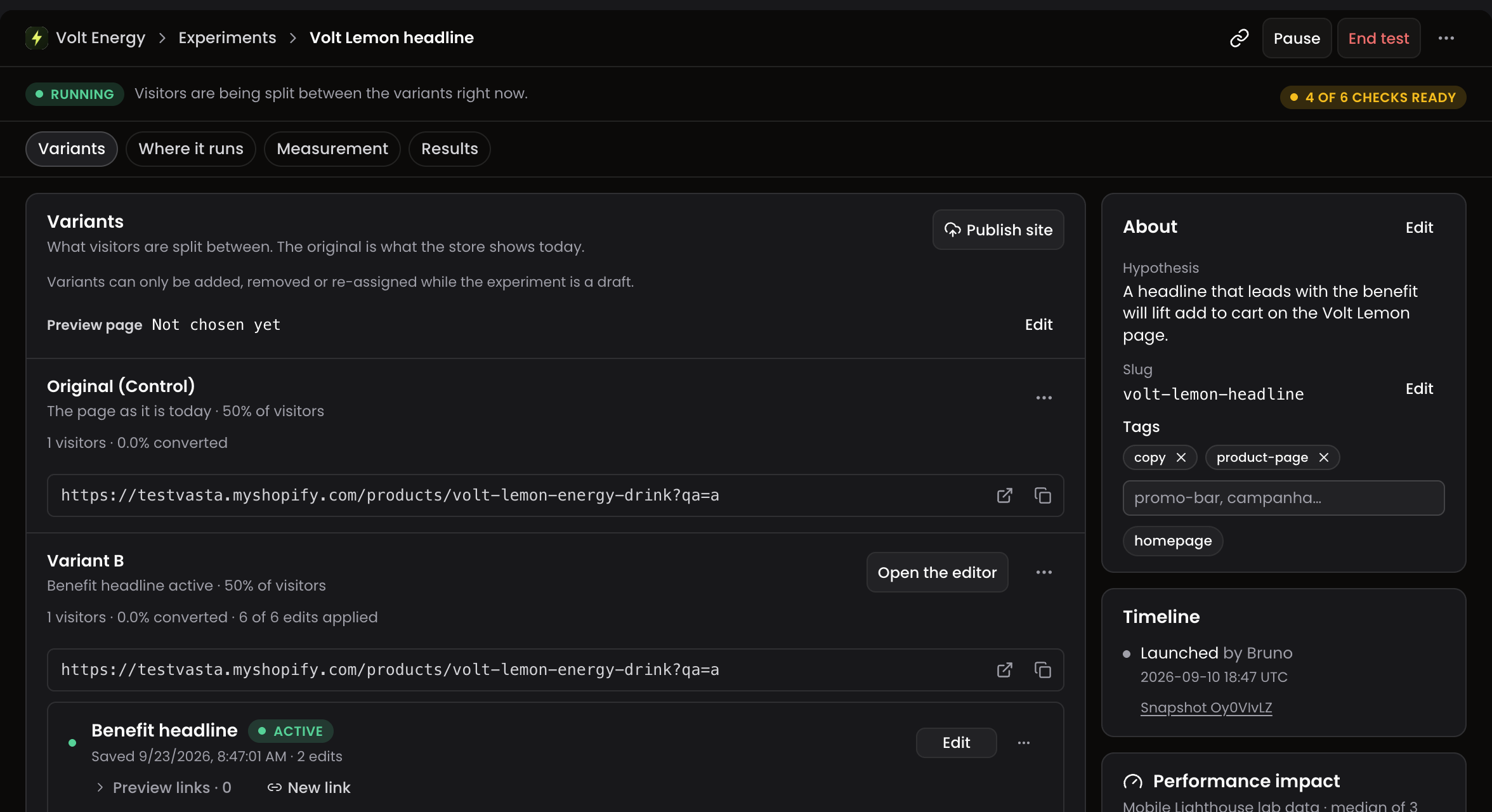
A running test on its Variants tab

A customization shows Open the editor at the top, its versions with their preview links, and Where it runs and Storefront at the side. A new version starts from New blank version in the page menu. Preview links open five at a time.
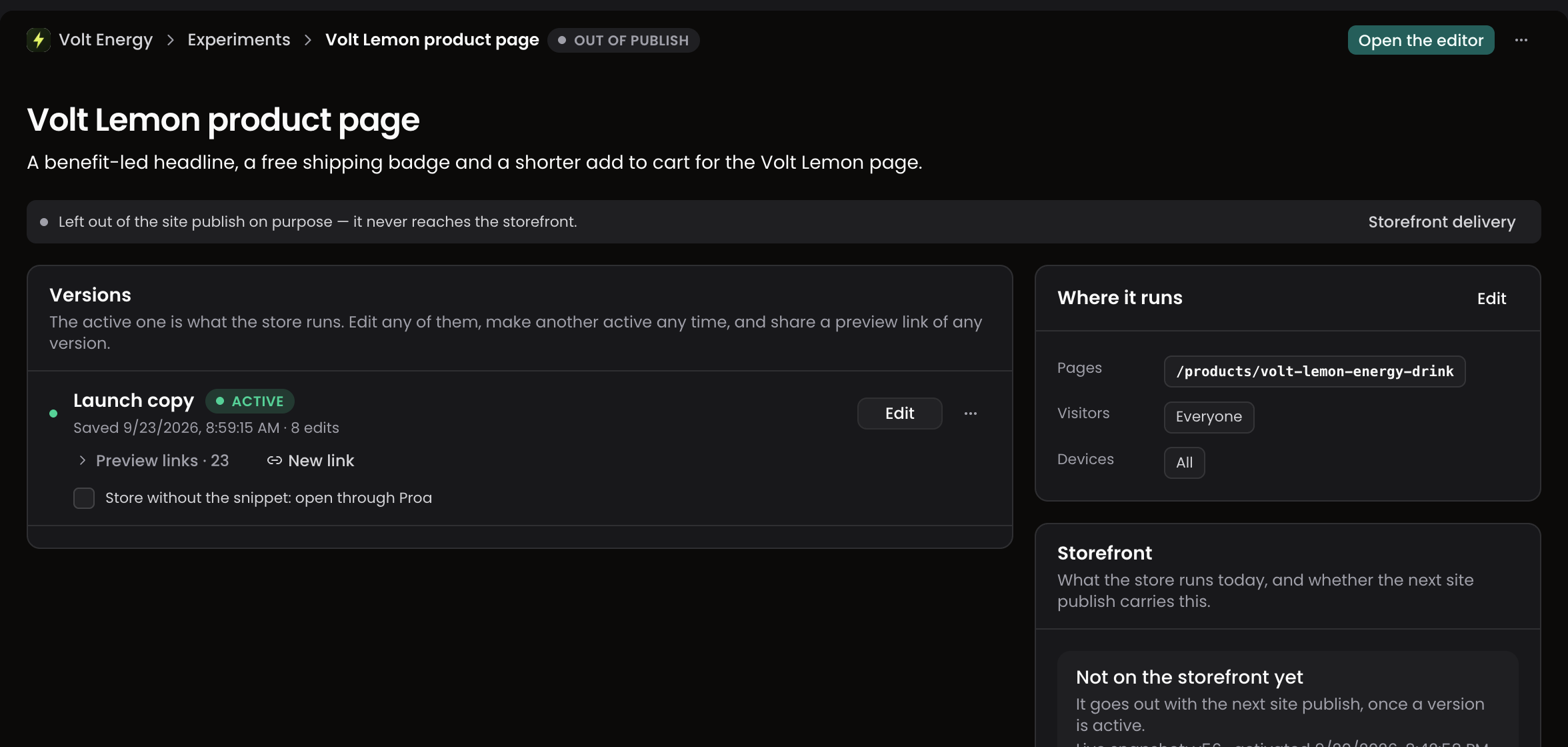
A customization with its versions, where it runs and its state on the storefront

Fixes

  • The Proa preview bar and element selection now show on stores whose theme hides empty blocks, such as Dawn.
  • A saved version with attribute edits no longer shows Unsaved changes.
  • In the publish confirmation, Add edits on an empty variant opens its editor.
v1.0.0-alpha46

Experiments without the wait

Tests open with their name and state already on screen, and the list answers as soon as you pick an action. You can also share a preview with a store that has not installed the Proa snippet.

Experiments without the wait

Experiments is where you open and run your tests. A test, a customization or a variant now opens with its name and state already on screen, while the rest of the page loads. Resting the pointer on a row gets that page ready before you click.

Actions in a row menu answer right away. The row says what you asked for, such as Pausing…, Starting…, Ending… or Duplicating…, until your store confirms it. An archived customization leaves the list at once, and comes back with a notice if the archive does not go through.

When a teammate starts, pauses, edits or publishes something, your list and the open test update without a reload.

Preview before the snippet is installed

Preview links show a store with one version of a customization applied. Until now the store needed the Proa snippet first.

Under Preview links, tick Store without the snippet: open through Proa. Open, QR code and Copy then use a Proa address that loads the store with that version applied. Checkout leaves to the real store. A headless store shows as a static page, where menus and cart do not respond.

v1.0.0-alpha45

Storefront at a glance

Storefront now opens with the state of your store, what is waiting to publish and who changed what. Publishing shows what changes for visitors, and pages open without a wait.

Your store at a glance

Storefront now opens with the state of your store: Live, Live, with problems, Delivery off, Not connected or Ready. The sentence under it counts what is running and what is waiting. Open store takes you to the store itself.

Waiting to publish lists each change with why it is there: New, Edited or Leaving. If you publish, Review and publish sits under the list. If you do not, the list says who does. Running on the storefront shows what visitors see now, and how often each item applied in the last 7 days.

Activity says who published and what changed, as in "Ana published 2 changes", followed by what went live, changed or came off.

Publishing

Review and publish now opens a confirmation that says what changes for visitors, in three groups: Goes live, Changes and Comes off. A customization with a known page has Preview, and the other rows have Open item.

Anything that blocks the publish or needs a look takes one line, and Show opens it. The button reads Checking… until every check is done, then counts the changes it will publish. Technical details, at the bottom, opens the full list on top.

Pages without the wait

After a refresh, the site name, its icon and your menus appear right away, without a full screen loader. Buttons arrive together with the page. When someone renames a site or changes its icon, every open session shows it without a reload. A picture you upload as a site Icon or in Profile shows as soon as you pick it.

Improvements

  • Site settings now opens from the site switcher, and leaves the sidebar.
  • When Experiments cannot load, it says Could not load the list with Try again, instead of showing an empty list.
  • Storefront waits for your publish history before it tells you the state of your store.
v1.0.0-alpha44

One list for tests and customizations

Your tests and your customizations now share a single list, with filters, search and results in it. Activity becomes Storefront, and each site can carry an icon.

Everything in one list

Experiments now holds your tests and your customizations together. The All, Tests and Customizations tabs switch between them, and each tab counts what it holds.

The columns say Where an item runs, its Status, whether it is On the storefront, its Reach and its Results. Filters narrows the list by state, storefront and tags, and by outcome on tests. Display sorts the list and sets the period the numbers cover, 7, 30 or 90 days. Search ignores accents and case, so "promocao" finds "Promoção". Every choice stays in the address, so a link opens the same view for the next person.

Each row carries its own menu, with Open the editor, Open page, Duplicate, Deliver to the storefront and Archive. Export CSV follows the filters and the order on screen. On a phone the rows become cards and Filters opens from the bottom.

Storefront

Storefront takes the place of Activity. Publication says what your store is running and what is waiting, with Review changes beside it. Delivery health counts impressions, applied edits and failures over the last 7 days, and Full report opens the day by day view. Below that sit History, the published versions your store has run with Restore on each, and your active preview links.

An icon for each site

Site settings now has an Icon. Upload one from your computer, or use Import from site to take one from the site itself. When the site offers more than one, Choose an icon lets you pick, with the size and the source of each. The icon then shows in the sidebar and in the site switcher. In the user menu, Profile sets your own picture.

Fixes

  • Changing the preview page of a customization no longer marks it as waiting to publish.
  • The editor opens your store on the preview page you saved, with no reload needed.
  • A test you end without a winner stays in the list as ended, until you archive it.
  • In a template test, End test now walks you through switching the template in Shopify.
v1.0.0-alpha43

Store preview on more stores

The store preview in the editor now loads stores whose address redirects between the www and the bare domain.

Stores with a www address

Some stores send visitors from their bare address to the www version, or the other way around. The store preview in the editor now follows that jump, so those stores load and Select works. Links between the two addresses stay inside the preview, and your edits appear on the page as usual.

Fixes

  • Adding a product to the cart in the preview keeps working on stores that use the www address.
  • When a page leaves for another site, the editor shows The store opened another site in a new tab, not the checkout message.

Earlier releases

v1.0.0-alpha42Store preview in the editor

The version editor now shows a preview of your storefront next to your edits, on the page you choose. Click an element in the preview to create an edit, and nothing reaches visitors until you publish.

Your store inside the editor

Switch to Select and click an element, and a new edit appears with the change already in the preview. Switch to Browse to move through your store as a visitor would, without creating edits.

The bar above the preview shows the page you are on and switches between desktop and mobile widths. On a page where the test or customization does not run, the editor says so and turns Select off. Where it runs opens those rules in a new tab, and Back to the preview page takes you back. Edits that do not apply on that page are marked Not on this page until you return. The checkout opens in a new tab, outside the preview, and you keep editing in this one.

Start from a page

New asks for a page of your store and who sees your changes before you start editing. Split visitors between the original and a variant, or show your changes to everyone or a chosen audience. Create and open the editor takes you straight to that page, with the preview already loaded. Every new customization now starts with an empty Version 1, ready for your first edit. When you create a test, Open Variant B in the editor right after creating the draft takes you there directly.

In the editor

  • Change element points an edit at another element and outlines it in the preview.
  • Each variant tab keeps its own undo history and its unsaved changes when you switch tabs.
  • On a phone, edits appear as a list, and each one opens in a sheet.

The test page

A test page now has four tabs, Variants, Where it runs, Measurement and Results, in that order. End this test first asks what the store shows next, then asks you to confirm that choice. Copy results as Markdown copies the report, ready to paste into a document or a message.

Versions and publishing

On the Versions list of a customization, a preview link that matches the saved version is marked Current. From the customization page, Edit storefront delivery lets you change what goes out to your storefront. Publish site now groups your changes into Goes live, Leaves the storefront and Stays as it is. A test does not start while one of its variants has an empty active version. Publish site also refuses an empty version and asks you to add edits or leave it out.

Fixes

  • A test whose pages overlap another running or paused test now warns Another running or paused test claims these pages.
  • After you end a test, the page header shows it as ended without a reload.
  • The New sheet and the new customization dialog no longer scroll sideways with a long recent page.
v1.0.0-alpha41Clearer status and plainer wording

Tests, variants and customizations now say what state they are in, with the same words everywhere. An edit whose target sits further down the page no longer fails while the page is still loading.

Status that says one thing

A variant now carries its own state: Locked for the control, Ready when its active version has edits, Empty when it has none, Removed when it was taken out of a test that already ran. It never shows the test's status, so a draft test no longer has a variant that reads as live, and each state explains itself when you hover it.

A customization with no active version says Nothing runs on the store until a version is active. One whose edits are waiting for a publish reads ready to publish.

The storefront switch, named for what it does

The section that decided what goes out of a customization is now Storefront, and its switch is Deliver to the storefront.

Plainer words in the editor and when you create a test

  • Keep this edit if the page redraws replaces the old wording about theme re-renders.
  • An HTML edit is placed At the start, inside or At the end, inside, instead of prepend and append.
  • The dialog is New test, its variants step is Variants, and it says each variant starts with an empty Version 1 that you fill in the editor afterwards.
  • Campaign test replaces campaign page, and an A/B test on a page you already have is described as editing the page visitors are already on.

Fixes

  • An edit whose target sits further down the page no longer fails while the page is still loading. An edit set to change every match now waits for the whole page, instead of changing only the part that had loaded.
  • The Proa snippet your storefront loads is smaller, so a page spends less time hidden before your edits appear.
v1.0.0-alpha40Pick elements from your storefront

In the live preview, click an element on your storefront and Proa creates the edit for it, with its type, target and content filled in. Each edit also shows how many elements it matches on the page right now.

Pick elements from the page

You no longer write a target by hand. In the live preview, switch the pointer from Navigate to Select and click an element on your storefront. A new edit appears in the editor with its type, target and content filled in: a photo becomes an Image edit, a line of copy a Text edit. Press Escape to go back to browsing.

While you point, the page outlines the element and says how many elements the target matches. An element another edit already changes is marked as already edited, and clicking it takes you to that edit instead of creating a new one.

On an existing edit, Pick from page points it at another element, Up to parent moves it to the element around it, and Down to child moves it back inside.

Matches on the page, live

With the live preview open, each edit shows how many elements its target matches on the page now. When that is more than one and Apply to all matches is off, the edit warns that only the first one changes.

Outdated preview links

A preview link shows the version as it was saved when the link was generated. A link generated before the latest save is now marked Outdated, on the customization page and in the list of active previews.

Improvements

  • Paste JSON loads a version from the clipboard, with the same checks as Import JSON.
  • Keep after theme re-renders sits on the edit card instead of under Advanced.
  • A CSS only edit asks only for its CSS, in CSS for this edit.
  • New edits are numbered edit, edit-2, edit-3, and a new edit no longer opens showing an error.
  • Hide keeps the element hidden when the theme tries to show it again.
  • In the live preview, an edit the theme reverts moments after it applies is marked Applied, then undone by the theme, and an edit on an element a theme script controls says so.
  • Preview labels include the URL parameters, so two templates on the same page are told apart.
v1.0.0-alpha39Edits per version, live preview and URL parameter targeting

A version of a customization is now a list of edits, each with its own target and content, previewed live on your storefront before you save. Experiments can be limited to a URL parameter, edits can survive a theme re-render, and the panel shows how long pages stay hidden before they appear.

A version is a list of edits

Until now a version carried one block of HTML and a list of places to put it. It now carries Edits: each edit has its own type (Text, HTML, Image, Attributes, Hide, Remove, CSS only), its own target and its own content, so one version can add a badge in one place and a full block in another. Click Add edit to create one, duplicate or reorder it, and switch on Apply to all matches when the page repeats the target. The old shared HTML is still there as the Shared block, and an edit can keep using it. Version CSS stays global and the editor now says so.

Export JSON and Import JSON move a whole version between sites or into a backup. Pasted HTML is cleaned of attributes added by browser extensions, and the editor says how many it removed.

Live preview on the storefront

Open live preview opens your storefront in a window and applies the edits as you type, without saving or publishing. Switch an edit off with Hide in preview to compare, and the page goes back to how it was. Each edit shows what it matched and what it changed. An edit that contains a script reloads the preview instead.

Experiments limited to a URL parameter

In Where it runs, URL parameters limits an experiment to visitors whose URL carries a parameter, for example only the paid-traffic version of a product page. A URL that repeats the parameter enters no test. The rules are kept when you duplicate an experiment and shown on the experiment page.

Edits that survive a theme re-render

Keep after theme re-renders, under Advanced on an edit, puts the edit back when the theme redraws that part of the page, such as when a shopper picks another flavour.

Less time hidden

Each part of the page hidden while an edit is applied now appears as soon as that edit finishes, instead of waiting for all of them. Hidden time, on the site’s Telemetry tab, shows how long pages stayed hidden over the last 7 days and how many hit the time limit.

Improvements

  • Versions and edits are named that way throughout the customization screens; Variant now only means an arm of an experiment.
  • Publishing refuses a version that uses the new edit features on a storefront whose Proa script is out of date, and says so.
v1.0.0-alpha38The Proa page inside the Shopify admin shows what is left to do

Opening Proa from the Shopify admin now shows the store’s connection state as a banner, the theme embed and checkout pixel as separate lines, and the pending step as the main button. Arriving in Site settings from the admin scrolls straight to the store field.

A clearer Proa page inside the Shopify admin

The page that opens under Apps → Proa by Vasta now looks like the rest of the admin and says what is left to do. A banner gives the state of the connection: connect the store, turn on the theme app embed, remove a duplicate script tag, provision the checkout pixel, or all set. Below it, Proa site, Theme app embed and Checkout pixel each have their own status, and the pending step is the main button, with the Proa panel one click away. A store that has the embed loading but the checkout pixel missing is no longer shown as complete.

Site settings opens on the store field when you come from the admin

Arriving in Site settings from the Shopify admin now scrolls to the Store domain field, already filled in and focused, so connecting the store is a single click on Connect Shopify store, which is now the card’s primary button.

v1.0.0-alpha37Connecting from the Shopify admin fills in the store for you

Opening Proa inside the Shopify admin on a store that is not connected yet now sends you to the panel with the store already filled in, and finishing the connection brings you back into the admin. Stores with the app installed no longer see the manual snippet by default.

Store pre-filled from the Shopify admin

When you open Proa inside the Shopify admin on a store that is not connected to a site yet, the page now takes you to Site settings with the store domain already in place; you only confirm the connection. If you were signed out, signing in returns you to that same page with the store still filled in.

Back to the admin after connecting

Connecting a store from the Shopify admin brings you back to the Proa page inside the admin when the connection completes, instead of leaving you in the panel.

Manual snippet tucked away once the app is installed

On a site whose store has the Proa app installed, the manual snippet block in Site settings starts collapsed and is marked as only for stores without the app. It stays open on sites that still rely on the snippet.

v1.0.0-alpha36Connecting a Shopify store allows it on the site automatically

When you connect a Shopify store through the Proa app, the store domain is added to the site’s allowed hosts by itself, so the Runtime serves it without a manual step in Site settings.

Connecting a Shopify store allows it automatically

Until now, a site created under one domain and later connected to a Shopify store through the Proa app would not serve that store until someone added the store’s myshopify domain to Allowed hosts in Site settings. Connecting the store now does that step: the domain is appended to the allowed hosts (the site’s primary host stays as it was), and a site that has never been published serves the store right away. On a site that is already published, the store takes effect on the next publish, like any other change to the allowed hosts. Disconnecting the app never removes the domain.

v1.0.0-alpha35Checkout pixel provisioned with the Shopify app install

Installing the Proa Shopify app now sets up the checkout pixel on the store by itself. Site settings shows whether the pixel is in place and offers a Provision pixel button when it is not.

Checkout pixel provisioned with the install

The checkout pixel is what lets an experiment see the checkout steps and fill in the coverage among paid orders. Until now it had to be set up apart from the app install, and a store could have the app connected without any pixel. Installing the app, or making another installation the primary one, now provisions the pixel as part of the same step.

Checkout pixel status in Site settings

The Installation card in Site settings shows Checkout pixel: Provisioned or Missing for the primary installation. When it is missing, a Provision pixel button sets it up, and the message says what went wrong when Shopify refuses, for instance when the app's access has expired and needs a reinstall. The Proa page inside the Shopify admin also points to the panel when the pixel is missing.

Small fixes

Stores whose first pixel provisioning failed because the app had no pixel yet can now provision it; that failure used to show as a generic error.

v1.0.0-alpha34Checkout coverage counts orders from the manual webhook, and Buy it now attribution

On stores with the Proa Shopify app, the observed coverage among paid orders now counts orders that arrive through the manual order webhook too, not only through the app. Orders placed with Buy it now from a page outside the experiment are attributed to the variant the shopper saw.

Checkout coverage counts orders from the manual webhook

The Observed coverage among paid orders section below the funnel is shown on stores with the Proa Shopify app installed, since the pixel is what sees the checkout steps. Until now it only counted paid orders delivered by the app's own order webhook; orders that arrived through the manual order webhook set up in the Shopify admin carried no checkout token and fell into "paid orders with no checkout token", so a store where both webhooks are configured could read an empty coverage. The manual webhook now records the checkout token as well, and the coverage fills in from the next paid order on. Orders received before this release stay outside the measure. Stores connected only with the manual snippet, without the app, still have no pixel and no coverage section.

Buy it now attribution

When an experiment runs on a single page, a shopper who saw the variant there and then bought a product with Buy it now from another page used to land as an unattributed order: Buy it now skips the cart, and the product form on that page carried no experiment. The product form is now marked with the variant the shopper was assigned in this session, on any page, while the experiment is running, so those orders count for the variant the shopper actually saw. The same shopper buying through the cart was already attributed; the two paths now agree.

v1.0.0-alpha33Funnel bars and checkout coverage

Experiments on stores with the Proa Shopify app show, below the funnel, how many paid orders were also seen at each checkout step. It tells you how much of the checkout the pixel is measuring, without guessing about abandoned checkouts.

Observed coverage among paid orders

Below the Funnel of an experiment there is a new section for stores with the Proa Shopify app. For each checkout step it shows how many of the paid orders in the window were also seen by the pixel at that step, and the share.

It answers one question: how much of the checkout is the pixel measuring? Shoppers who decline analytics consent are not seen by the pixel, and this number shows the size of that gap among the orders you actually received. It is not an estimate of abandoned checkouts and it does not change the funnel above.

While there are fewer than 30 paid orders with a checkout token in the window, the numbers still show, with a note that the sample is small. Paid orders without a checkout token are counted apart.

Funnel bars

The Funnel now draws a bar per variant at each step, sized against that variant's own sessions, so you can see where each variant loses shoppers without reading the grid. The grid stays below as the readable table. Steps that are not measured on the site are not drawn, and no colour means better or worse.

Small fixes

The funnel grid no longer leaves an empty column when the cart step is not measured but the checkout steps are.

v1.0.0-alpha32Checkout steps in the experiment funnel

Experiments on stores with the Proa Shopify app now show two checkout steps between the cart and the orders: started checkout and payment intent. Connecting a store from Shopify lands you on the right site.

Checkout steps in the funnel

The Funnel section of an experiment used to stop at the cart. On stores where the Proa Shopify app is installed it now shows two more steps per variant, coming from the checkout itself: Started checkout and Payment intent, with the share of started checkouts that reached the payment step.

Payment intent is the shopper submitting the payment form. It is not a paid order; orders keep coming from Shopify as before.

The steps only count checkouts the app was allowed to see. Shoppers who decline analytics consent in the store's privacy banner are not counted there, and the funnel says so instead of guessing. On stores without the app the funnel keeps its three steps and explains how to add the rest.

Connecting a store lands on the right site

After connecting a Shopify store, Proa now opens the site that was just connected, even if you had another site selected when you started.

v1.0.0-alpha31Proa inside the Shopify admin

Opening Proa from the Apps list in your Shopify admin now shows whether the store is connected and how the snippet is installed, with a shortcut to the Proa panel. Stores that run two Proa apps during a migration can choose which one is in charge.

The Proa page in your Shopify admin

Clicking Proa under Apps in the Shopify admin used to show an error page. It now opens a Proa page inside the admin.

The page names the website the store is connected to and tells you how the snippet is installed on your storefront: through the app embed, through the manual tag, or both at once. Open the Proa panel takes you to the site settings, and Activate in theme opens the theme editor when the embed is not on yet.

A store that was installed outside Proa sees a note asking you to connect it from Site settings in the panel.

Choosing the app in charge

When a store has two Proa apps installed at the same time, the Install with the Shopify app section lists them under Connected apps, with a primary badge on the one that counts orders and checkout events. Make primary on the other one switches, after a confirmation. You can switch back while both apps stay installed.

v1.0.0-alpha30Section edits, duplicate tests, Shopify app

You can change one part of an experiment at a time and see what you changed before saving. You can also start a new draft from an experiment you already ran, and install the Proa snippet on Shopify through the Proa app instead of editing the theme.

Editing an experiment section by section

Each section of the experiment detail now carries its own Edit button, so changing one thing does not mean reopening the whole experiment.

  • Edit identity: the name and hypothesis, wherever the experiment is listed.
  • Edit traffic split: who assigns the visitor, and the share each variant gets.
  • Edit schedule: the start and end, in UTC, with the local time under each.
  • Edit where it runs: the pages and screen sizes the experiment is scoped to.
  • Edit metrics: what the experiment is decided on, and when to apply the winner.
  • Edit priority: the order a customization applies in.

Review changes lists what you edited before you save, and marks a change that reaches your storefront on the next publish, or that moves the attribution parameter of every variant. On a running experiment, new shares apply only to visitors assigned after you publish.

Duplicating an experiment

Duplicate creates a new draft with the same setup, so an experiment you have already run becomes the starting point for the next one. View draft takes you to it.

A campaign experiment cannot be duplicated on its own, because it exists only as part of its group.

Installing on Shopify with the Proa app

Runtime settings has a new Install with the Shopify app section. Enter the store domain and click Connect Shopify store, then turn the Proa Runtime embed on in the theme editor with Activate in theme. No code goes into the theme.

The section tells you what it sees on your storefront over the last seven days: the embed working, the store still waiting for its first visit, or two Proa tags on the same page. When a leftover manual snippet is found, it says when it was last seen, so you know whether removing it worked.

v1.0.0-alpha29Editing an experiment variant

Opening a variant of an experiment no longer shows the schedule, pages or delete control that belong to the experiment as a whole. It explains where those live now and takes you there.

What the variant screen shows now

A variant used to show its own schedule, page list and delete button, but none of those belong to the variant. They belong to the experiment itself, and saving them here always failed.

That section now explains this and links to the experiment's Targeting tab, where the schedule and pages are set once for every variant. Removing a variant works the same way: the screen points to the experiment's Variants & Content tab instead of a delete you cannot use.

Fixes

  • An experiment whose variants carry different schedules now shows a warning on its Targeting tab, since saving a schedule there applies it to every variant.
v1.0.0-alpha28Audience targeting

A test can now run on several pages, leave some of them out, and reach only phones, tablets or desktops. You set all of it on the Targeting tab.

Pages included and excluded

Under Where and when on the Targeting tab, a test carries two page lists instead of a single page field.

You add one path or glob per entry, like /products/*, and the test runs on all of them. Pages excluded takes pages back out of that scope, so a gift card page can stay out of a test that covers every other product.

  • Pages included holds up to 10 entries. Leave it empty and the test runs on Every page.
  • Pages excluded holds up to 10 entries as well.
  • A typo is caught when you add the entry, not when you try to start the test.

Screen size

The same group carries a Screen size picker, so a test can reach one kind of device only.

Pick Mobile, Tablet, Desktop, or any combination of them. With nothing picked, the test runs on Any screen.

The picker reads the browser window width, the same measure the page uses to choose its layout. The device column in your results reads the browser identity instead, so the two can disagree for one visitor. The picker says so where you choose.

Split URL tests

A test that sends visitors to another page runs on its origin page and nowhere else, so it has no page lists to edit. You can still narrow it by screen size.

Changing the origin page of a draft split URL test now moves the test with it.

Fixes

  • The QA checklist compares both page lists of each test, Pages included and Pages excluded, when it looks for tests that clash on the same page.
  • An excluded page counts as excluded in that same check.
v1.0.0-alpha27Preview per variant

Template and split URL tests get a preview. Open a link that puts you in one variant, walk your storefront as that group sees it, and switch variants in place.

Preview one variant on your storefront

Tests that swap a theme template, and tests that send visitors to another page, now have the preview the other test types already had. In QA & Preview, every variant carries its own Open preview.

The preview puts you in that variant for your session only. Nothing is assigned, nothing is remembered, and the visit never counts in the numbers of the test. It lands you where that variant sends the visitor: the template it renders, or the destination page of a split URL test. Your own query parameters travel along.

Each variant also shows a plain landing address to copy or open on a phone by QR code. That one is the address alone and does not put you in the variant.

Switch variants in place

The preview badge at the bottom of your storefront carries a variant selector. Pick another variant and the page moves to what that group sees, in the same session, with nothing assigned or written.

A QA panel that answers in plain words

Paste what the open page reports and the panel names the variant the page belongs to, says whether the template that variant asked for rendered, and says whether the answer came from your unpublished draft or from the published version.

A test still in draft can be previewed too, so you can walk it before it carries traffic.

Fixes

  • A website link that cannot be checked because the server did not answer now says Couldn't reach Proa with a Try again, instead of reporting that the website does not exist.
v1.0.0-alpha26Website in the address

Every page address now names the website you are looking at, so a pasted link opens on that website for anyone with access.

The website is in the address

Every page under Runtime and Studio lives at an address that names the website you are looking at, like /w/your-website/runtime/experiments.

Copying the address bar is enough to share exactly what you see. Experiment and customization pages also carry a Copy link button in the header.

Two tabs open on two different websites each stay on their own website.

Old links keep working

Links shared before this release still open. One that does not name a website takes you to the same page on the website you last had open, with everything after the "?" intact.

A link to a website you cannot see says Website not found, instead of switching you to your own website and showing numbers that belong to somebody else.

Switching website keeps your place

Switch website in the sidebar no longer sends you back to the start.

  • On a list such as Experiments, Customizations, Activity or Site settings, you stay on the same list, now for the website you picked.
  • On a page about one experiment or customization, which does not exist for the other website, you land on the home of that website rather than on an error.
v1.0.0-alpha25Split URL tests

A new test type sends part of your visitors to a different page of the same store, so you can compare two landing pages without editing either one.

Send visitors to another page

What kind of test is this? has a fourth answer: Split URL test. You name the page the test runs on and, for each variant, the page of your store that variant shows.

Visitors assigned to a variant are taken there in one redirect. Campaign parameters such as utm and gclid travel along, the address bar shows the real page, and the back button behaves.

  • The control stays on the original page. Visitors who reach the alternative page on their own, from a shared link or an ad, are not counted, so the comparison stays clean.
  • Before you can start, Proa opens every destination and confirms the page exists and carries the Proa snippet. A mistyped address or a password-locked store is named before it can cost you traffic.
  • A checker shows, for any address you paste, where each group of visitors lands.

QA that names the outcome

The QA & Preview tab lists where each variant sends the visitor and reads the page you have open: eligible, confirmed, out of the test, or a named configuration error.

A destination that no longer exists is reported as exactly that, never as a silent no-show.

Fixes

  • When anything the redirect depends on is missing, the test does not run for that visitor, so nobody reaches a page that cannot be measured.
v1.0.0-alpha24Targeting tab, regrouped

The experiment settings are grouped into three questions, and the traffic split is a bar you can read at a glance.

Settings in three groups

The Targeting tab presents its fields as Identity, Traffic split and Where and when.

Each group heading counts how many of its fields are fixed for the rest of the run. Every field carries one hint: a padlock marks what is locked and says why, an amber band marks the one change that has a consequence, and red is kept for what stops you from saving.

  • The hypothesis prompt moved into the field itself, where you need it.
  • An empty page scope reads Every page, so leaving it empty is a decision rather than a blank.

The split is a bar

Who splits the traffic? is two cards you choose between, worded the way the wizard words the same decision.

The allocation is a segmented bar: the control in neutral, the variants in the accent ramp, and whatever you left unallocated as a hatched stretch with its own number. A split that adds up to 70% now looks like one.

Changing the weights of a running experiment leads with the consequence: new weights reach new visitors only, so the observed split takes a while to catch up.

The split parameter, only where it decides something

An experiment that Proa splits does not use the URL parameter, and the screens no longer print it.

  • The experiments list shows Proa splits on its own. External tool with its parameter is unchanged.
  • Campaign pages keep the parameter, where it names the ad the visitor arrived from and builds the entry links.
v1.0.0-alpha23Template tests on a draft theme

A template test can prove itself against a theme you have not published yet, and the wizard holds you on a step until its fields are right.

Verify against a theme you have not published

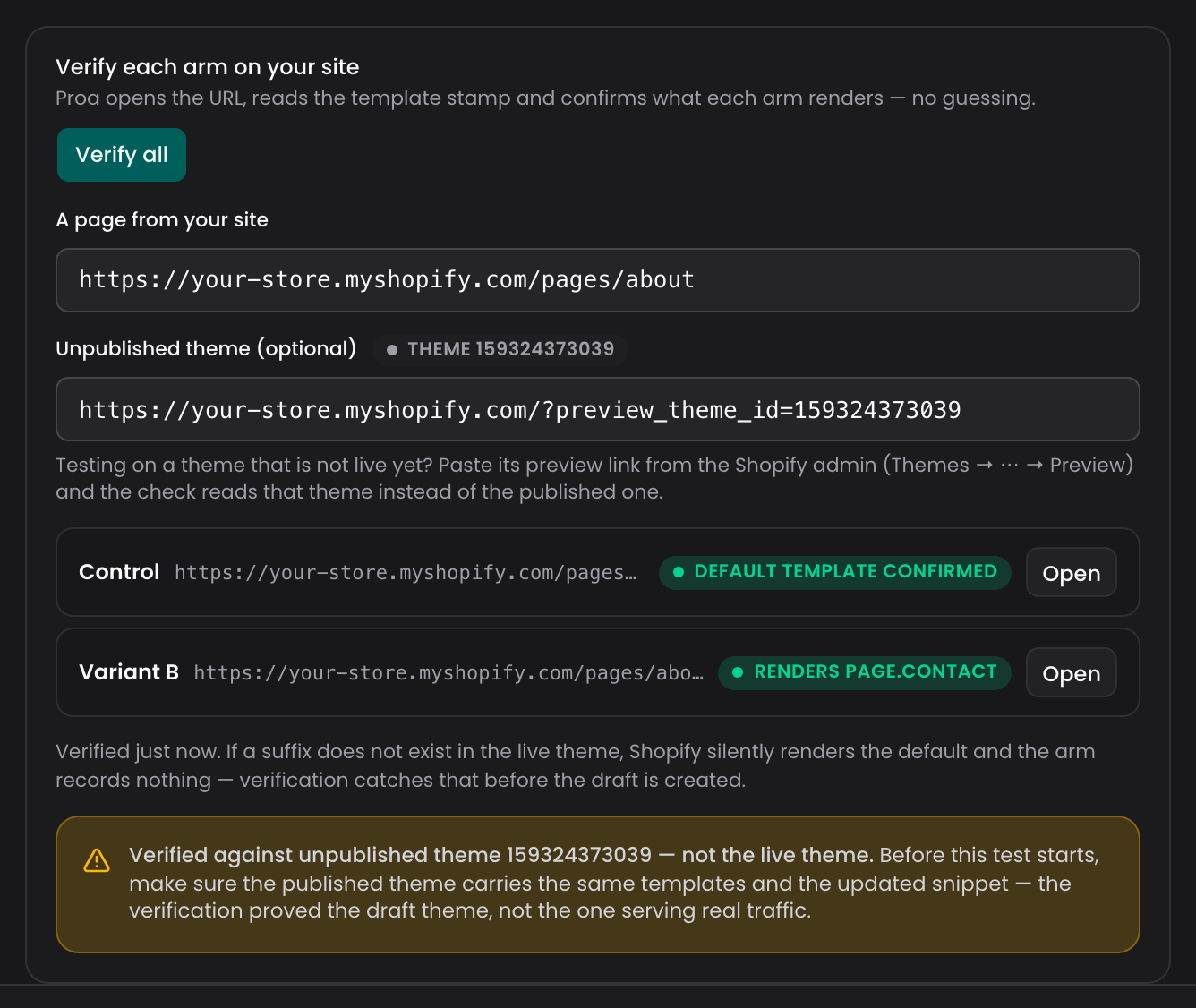
Paste the preview link of the theme, or its id, into the unpublished theme field on the verify step, and Proa checks each variant against that theme.

The verification names the theme that proved it, and reminds you to publish that theme before the experiment starts, because your storefront serves the published version.

A store behind its password page is told apart: Proa says the password blocked the check and offers confirming by hand.

The verify step of a template test, checking each variant against a theme that is not published

The wizard holds its own line

  • A step with errors keeps you on it and shows what to fix.
  • A refused Create draft shows the list of blockers, so the click never reads as a dead button.
  • A slug already in use is caught on the field, including the slugs a campaign derives from its ad values.
  • Scheduling gained a button to clear the date, and the end-date calendar refuses days before the start.
  • The control variant explains in plain text why it cannot be removed and which decision to change.
  • A page path typed with accents is repaired into what the browser sends, so the experiment matches the address.

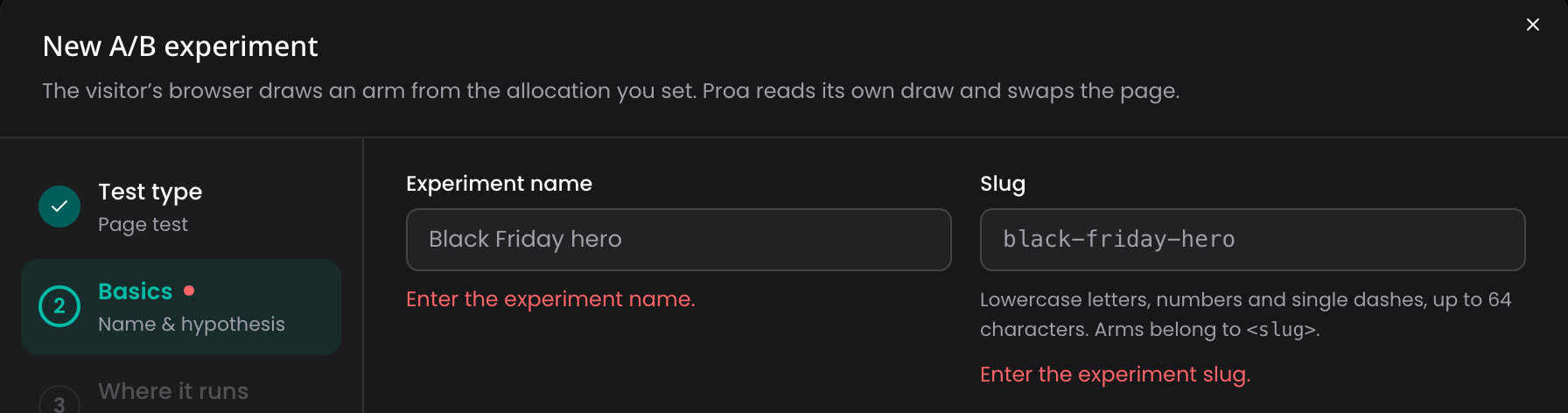
The wizard refusing to leave a step whose fields are empty, with the errors shown on the fields

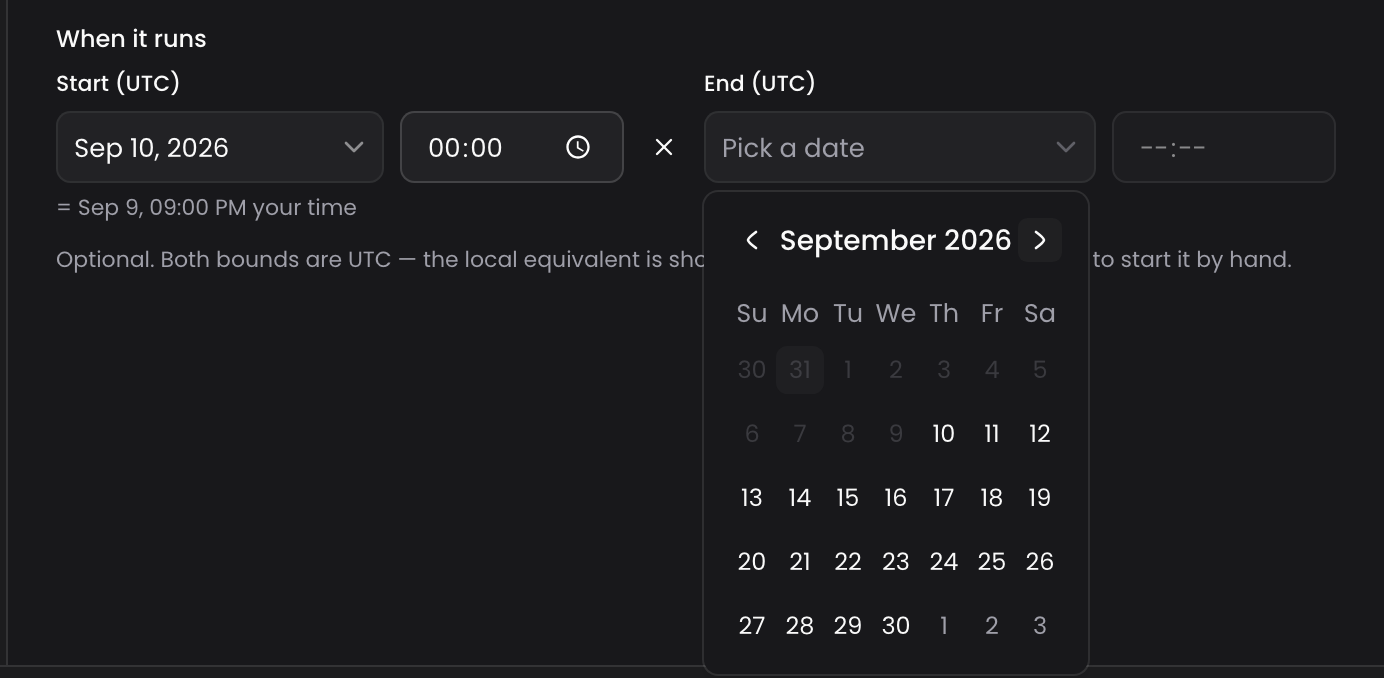
The schedule step, with a button to clear the start date and every day before the start greyed out on the end calendar

The experiment page says what happens

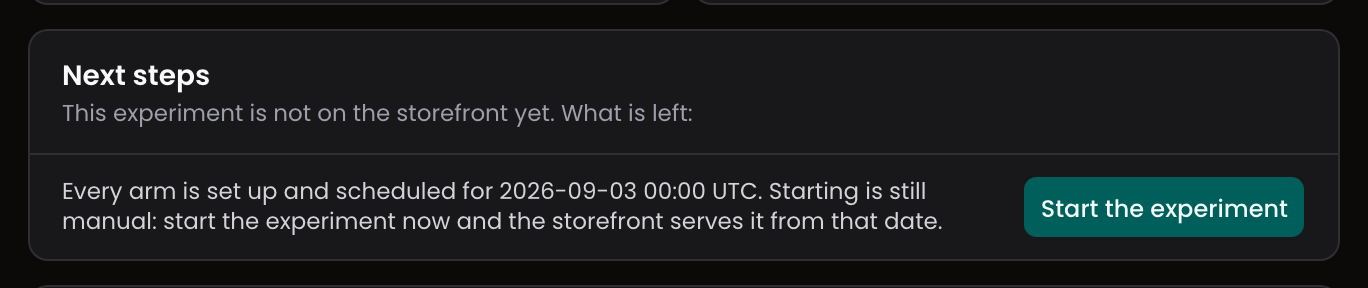
  • Next steps gained the step that was missing, Start, and points there once every variant is ready and the site is published.
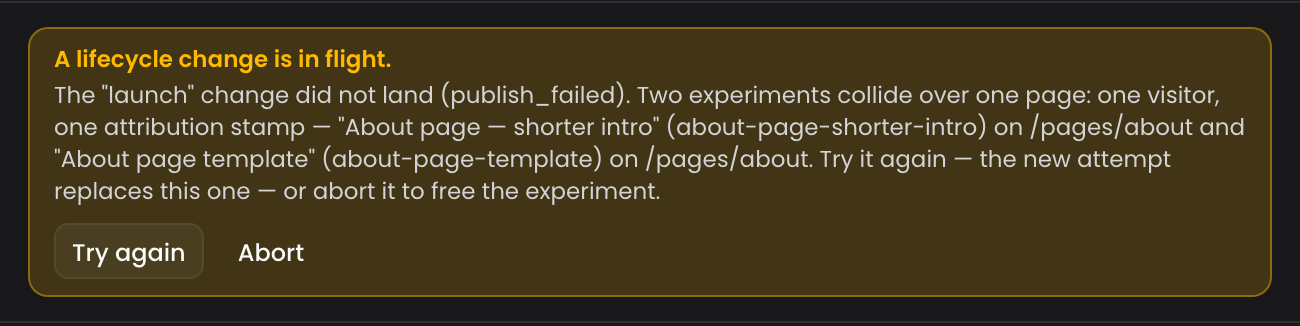
  • A publish refused because two experiments claim one page names both experiments, so the next move is one click away.
  • Include all variants in publish states what it did: the original-page control stays out, and if everything was included already, it says so.

The Next steps checklist pointing at Start, with the scheduled date named

A refused start naming both experiments that claim the same page

v1.0.0-alpha22Test types in the wizard

Creating an experiment starts by naming the kind of test, and a template test proves itself against your live theme before the draft exists.

One question first

The wizard opens on What kind of test is this?, and everything after it adapts, including who splits the traffic.

  • Content test: each variant edits the page the visitor is already on. Proa splits the traffic and keeps each visitor in place, or your external tool splits it through a UTM parameter.
  • Template test: the same address rendered by an alternative template of your live theme. Proa splits the traffic, and the control is the template the page already uses.
  • Campaign page: each ad gets its own experiment, all in one exclusion group, so a visitor enters at most one of them.

Each kind shows an example of what it produces, so you choose on the shape of the result rather than on the vocabulary. The choice is fixed once the draft exists, and the wizard says so before you commit.

Nothing goes live from the wizard. It creates a draft you review and publish from the experiment page.

A template test proves itself against your live theme

Before the draft is created, Proa opens the address and confirms what each variant renders.

  • Every variant has to be verified before the draft can be created, because that check is what proves the template exists in the live theme.
  • When a page does not render the control template, the message points at the page and the control template to compare in the theme editor.
  • When your site refuses the request or does not answer, Proa says the check could not run and offers confirming each address by hand.
  • Pick which kind of page the test runs on and which template those pages use. The control carries no suffix of its own, so its visitors keep the clean address.
  • The template suffix stays editable while the experiment is a draft.

Campaign ads you can read

  • Type an ad value and see the entry address it produces and the experiment it creates.
  • Slugs come from the experiment slug and the ad value, so the naming is predictable before anything is created.
v1.0.0-alpha21Template tests and results analysis

A variant can be a whole Shopify template, and the Results tab answers questions about your numbers in plain language.

A variant can be a whole template

A variant no longer has to be a tweak applied to the page. It can be an alternative Shopify template rendered at the same address, which is how you compare two builds of a product page.

Each variant carries the suffix of the template it renders. The control names its own template or stays on the theme default.

  • Two variants cannot claim the same template, and a suffix holds up to 64 characters.
  • A template variant has no content edits of its own, so it becomes ready and publishes on the template alone.
  • Publishing refuses a setup where two experiments in one group would fight over the same template.
  • The cost is stated up front: one extra navigation per eligible page view.
  • The install card gained Shopify and Other tabs, so the Proa snippet you copy carries what this kind of test needs.

Check it before it runs

  • Paste an address and see where each variant is served.
  • The QA panel reads a real page load and names the outcome: eligible as control, eligible as a confirmed variant, or out of the test with the reason.
  • A template parameter that belongs to another app is left exactly as it is, and that visitor is never counted as control.

Ask about your results

The Results tab gained an Analysis: a written read of the experiment, with a conversation beside it.

  • Analyse this experiment writes the report. Chat about your results opens a drawer for follow-up questions about the window you are looking at.
  • The window the analysis read is stated, so the prose and the numbers above it cannot disagree.
  • Probabilities are stated as they are, never rounded up into a certainty.
  • The analysis never changes the numbers above it, and says so when it fails to load.
  • Admins also see what the analysis cost.

More on the Results tab

  • By audience gains three dimensions beside device and country: channel, source site and landing page.
  • Mini bar charts on the metric cards, and a confidence interval bar in the significance table with the definition of the metric beside it.
  • The observed split is shown for externally split experiments too.

Fixes

  • The customization detail no longer flashes an error while it is loading.
  • A failed composition is no longer cached, so one bad response cannot keep reaching your storefront.
v1.0.0-alpha20Light mode

Choose between dark and light, and work in a rebuilt experiments list and creation wizard.

Light and dark, your choice

A theme switch sits next to the logo in the sidebar. Dark stays the default, and light is a choice saved on your device.

  • Ctrl/Cmd+D flips the theme from anywhere.
  • The whole app switches in one step, with no light flash while it loads.
  • Every screen was reviewed in both themes, including the Studio.

The experiments list, rebuilt

  • One compact bar holds search, a single Filters menu (state, tags, outcome, period and sort) and the actions, with removable chips showing what is active.
  • Status and start date share one column, so the table reads left to right: what it is, where it stands, what it did.
  • Row actions live in a menu that stays visible while you scroll sideways, and the same menu opens on right-click, right where you clicked.
  • On a phone the table becomes a stack of cards you can tap, with the summary numbers at the top.
  • The header says how many experiments match, and never guesses while pages are still loading.

A finished creation wizard

  • The five steps live on a rail that shows what you already answered.
  • Choices are cards rather than dropdowns: what you are testing, who splits the traffic.
  • Common URL parameters come as presets, and Proa splits gains per-variant weights with a live allocation bar.
  • On a phone the wizard opens as a full-height sheet.
v1.0.0-alpha19Results by audience

The experiment page can break the funnel down by device and country, and a finished experiment can leave its group.

By audience

The experiment page gains a By audience panel that breaks the funnel down by device class and country.

Compare segments variant by variant: how many visitors were assigned, and how far they got. Both dimensions come from what your pages already send, a coarse device class and a country, and nothing resembling a fingerprint is collected.

  • Countries with too few measured sessions are grouped into Other. They are grouped, never dropped, so every column still adds up to the variant total.
  • The panel is descriptive on purpose: no segment carries a verdict, a significance reading or a leader. The decision stays on the primary metric above it.
  • Conversion and revenue are not split per segment, because the order side does not carry these dimensions. The panel says so instead of leaving an empty column to interpret.
  • A window with no dimension recorded yet says so, and fills in as the data arrives.

Fixes

  • An experiment that is concluded or archived can now leave its group, so the group can be deleted once its experiments have ended.
v1.0.0-alpha18Proa splits the traffic

An experiment no longer needs an external tool to divide the visitors, and the Results tab grew to match.

Proa can split the traffic itself

The wizard asks Who splits the traffic?

  • External tool, the way every experiment worked until now: Meta Ads, Intelligems and similar divide the traffic and tag each variant with a URL parameter, which Proa reads to swap the page.
  • Proa splits: the browser of the visitor is assigned a variant from the allocation you set, and Proa swaps the page on that.

What that gives you:

  • A traffic allocation per variant. Either every variant carries one or none does, and a refusal names the reason.
  • The assignment sticks across pages, so the experiment is not limited to one landing page.
  • An experiment Proa splits needs a control variant, the baseline every other variant is read against.
  • Who splits is fixed once the experiment first goes live, because it is what the collected sample was split by.
  • The experiments table gains a Split column, naming who assigns the variant for each visitor.

Campaign pages

One campaign creates one experiment per value of a parameter, grouped so a visitor lands in exactly one of them.

  • Proa always splits a campaign page, because the parameter already names the ad.
  • Choose whether the variants are cloned into every ad value, or each ad value gets its own variants and allocation.
  • A visitor enters at most one of the experiments of a campaign and stays there. Proa records that decision only when the visitor is eligible for one of the tests in the group, so someone who browsed your store before clicking the ad can still enter the campaign.

Customizations and experiments on one page

A customization and an experiment variant can now apply to the same page. The customization renders first, the variant on top.

  • When the two touch the same element destructively, Proa says so instead of pretending the order settles it.

More on the Results tab

  • Comparative cards per variant, with the winner still visible after it is archived.
  • A time series of the metric, and average order value read per currency.
  • A split check, so you can see whether the traffic delivered matches the allocation you published.
  • Leader, reading and verdict follow the metric the experiment declares, instead of always conversion rate.
  • Revenue per visitor and average order value are compared with a paired test over matched days, and the reading says how many paired days it observed.
  • The significance table shows a classical reading next to the Bayesian one, with a tooltip for each, and says when the counts are too small for it.

Fixes

  • An archived experiment no longer marks the page, so its control variant is not attributed.
  • Publishing is held while a lifecycle recovery is in flight.
v1.0.0-alpha17Live updates in production

The dashboard refreshes itself in production, so what is on screen no longer goes stale behind your back.

The screen keeps up on its own

Lists and detail pages refresh when something changes in the background, including work started by a teammate or by Proa itself.

Long jobs report progress while they run, instead of looking frozen until they finish.

  • The connection recovers on its own after a drop.
  • Each environment has its own stream, so activity in a test environment never surfaces in production.
  • Opening the dashboard no longer loads everything a second time.

Fixes

  • Sorting the website list in the sidebar no longer reorders it for the rest of the app.
v1.0.0-alpha16Tabs on the experiment page

The experiment page splits into tabs, records everything that happened to it, and puts each variant preview on your phone.

The experiment page is organised in tabs

Instead of one long page, the experiment opens on Overview with the numbers that matter, and the rest sits behind tabs.

  • The Overview leads with the KPIs, stating the window and the currency they are read in.
  • Banners are ordered by urgency, so the thing that needs you appears first.
  • Link straight to a tab and share that link. Renaming the experiment keeps you where you were.
  • Targeting is read-only where it cannot be edited, and the Leader tile restates the verdict instead of contradicting it.

A timeline of everything that happened

The Overview rail gains a timeline for the experiment: each state change, who made it and when, in UTC.

A QA and preview tab

Checking an experiment on a real device stops being a copy and paste exercise.

  • One card per live variant, each with a QR code you can scan from the screen.
  • Previews already open are listed alongside them.
  • A checklist states what has to be true before publishing.
  • When a path pattern needs attention, the card says so once, not on every row.

The Proa mark everywhere

Favicons, app icons, share cards and the email logo carry the v2 mark.

Fixes

  • Next steps describes what your storefront is serving, instead of assuming.
  • The synthetic data card asks for at least two live variants before it will seed.
v1.0.0-alpha15A table and a primary metric

The experiments list becomes a searchable table, you pick the metric that decides the winner, and you can edit an experiment after creating it.

The experiments list is a table

The table is the default view, and cards are one toggle away.

  • Search by name or slug across every experiment, not only the ones on screen.
  • Sort by newest, oldest, name or start date, with the ordering holding across pages.
  • Filter by several tags at once, matching experiments that carry all of them.
  • Read the hypothesis and act on an experiment inline, without opening it.
  • Load results a page at a time, with a running count of what is loaded.

Choose the metric that decides

An experiment now names its primary metric: conversion rate, revenue per visitor or average order value.

  • Pick it when you create the experiment, or change it later while the experiment allows it.
  • The End dialog and the apply-winner flow default to that metric instead of assuming conversion rate.
  • Automatic winner application is judged on the metric you chose.
  • When the metric is not conversion rate, the reading says so, and validation alerts record which metric was measured.

Edit an experiment after creating it

A Settings section on the experiment page reopens the decisions that were final at creation.

  • Change the experiment parameters while it is still a draft.
  • Add, rename or remove variants, and move which variant is the control, with a confirmation that spells out the consequence.
  • Rename the slug and keep an alias behind it, so shared links and installed references keep working.
  • When a name or slug is taken, the message says exactly that instead of asking you to try again.

Rehearse a result before it happens

The experiment page gains a synthetic data card: pick a preset, preview the verdict the data would produce, watch it fill in, then clear or seed again. The experiment is flagged while synthetic data is in place, and clearing removes exactly what was generated. Available on websites with the QA sandbox enabled.

Fixes

  • The Proa logo was redrawn, and it animates on the login screen and in the sidebar.
  • A paused experiment reads as paused: no pace estimate and no call to action until you resume.
  • A collided transition reloads the page only for a genuine race, and a permanent refusal shows the reason the server gave.
v1.0.0-alpha14Verdict, pause and resume

Every experiment opens with a plain verdict, and you can pause or resume it without leaving the page.

A verdict at the top of every experiment

The experiment page opens with a reading of where the test stands.

  • See the outcome and the leading variant before scrolling into the numbers.
  • A verdict you can act on appears only on the standard reporting window. A custom period is labelled historical and offers no call to action.
  • The verdict reads the outcome and winner recorded on the experiment, so it matches what was decided.

Pause and resume without leaving the page

  • Pause a running experiment and Resume it later, from the experiment page.
  • A transition still in flight shows its own banner with Try again, retry and abort.
  • A transition that failed for good is retried by running the action again, never by hiding the error.
  • A paused experiment is marked as paused on its card, with the reason.

A calmer creation wizard

  • Set the start and end schedule while creating the experiment.
  • Opt in to automatic winner application at creation time, with the minimum duration validated inline, 1 to 30 days.
  • The duration estimate is seeded from your own Site telemetry, and says when the baseline came from a proxy rather than measured sessions.
  • Your guardrail choice is remembered.

Fixes

  • Customizations are called customizations everywhere outside the editor, including publish messages.
  • Activity, telemetry, members and the website fallback have real empty, loading and error states.
  • Login opens with an animated Proa wordmark.
v1.0.0-alpha13New addresses

The dashboard and the API moved to their canonical Proa addresses.

Canonical Proa addresses

The dashboard now lives at app.tryproa.com and the API at api.tryproa.com. Your storefront keeps being served from runtime.tryproa.com.

The previous addresses stay live, so bookmarks, installed snippets and integrations keep working while you move over.

v1.0.0-alpha12Vasta is now Proa

The product you work in every day has a name of its own.

The product has its own name

Vasta is the agency. Proa is the product.

  • The dashboard, the badge on your storefront and the copy in the app now say Proa.
  • Emails arrive from Proa.
  • Your storefront is served from runtime.tryproa.com.
  • References to Vasta stay where they describe the agency: ownership and onboarding.

Nothing changes in your data, your experiments or the snippet already installed on your storefront.

v1.0.0-alpha11Automatic winner application

Opt an experiment in to auto-apply, and Proa promotes the winner only when the result is statistically decisive.

Auto-apply, gated on significance

Turn auto-apply on per experiment, from the experiment page. Proa applies the winner only when the significance reading is decisive, never on a lead alone.

  • Applying is transactional: when the site changed underneath in the meantime, the publish is held instead of overwriting the work of somebody else.
  • You get an email when a winner is applied, saying plainly when the change was not published.
  • The experiment page shows that the winner was applied automatically, and when.

Significance from the server

The significance behind the verdict is computed on the server, so the number you read is the number the automation acts on.

v1.0.0-alpha10Verdict at zero orders

The significance reading stays on screen before the first order arrives.

Fixes

  • The verdict renders even when a variant has no orders yet, instead of vanishing from the page.
  • The 95% interval shown always contains its own point estimate.
v1.0.0-alpha9Sessions column and CSV export

The comparison grid gains a Sessions column, and CSV export works again from the experiment page.

Sessions in the comparison grid

A Sessions column shows the denominator behind the conversion rate of each variant.

  • Availability is decided per variant, so a variant with sessions is never hidden because another variant has none.
  • On the proxy basis, Sessions reads as not measured, instead of showing a number that was never counted.

Fixes

  • CSV export from the experiment page downloads correctly again.
  • The duration estimate never suggests less than one day.
  • Secondary metrics wrap instead of overflowing on narrow screens.
v1.0.0-alpha8Bayesian significance

Every variant conversion rate comes with probabilities and an interval, not just a lift.

A statistical reading on every variant

Each conversion rate is now read against the control instead of standing on its own.

  • P(beat control): the probability that the variant is better than the control.
  • P(best): the probability that the variant is the best of all variants.
  • A 95% credible interval around the conversion rate.
  • A plain verdict of where the experiment stands.
  • A winning control is described as winning, never as beating itself.
v1.0.0-alpha7Conversion rate per variant

Conversion rate is now orders divided by measured sessions, with any fallback labelled on screen.

A conversion rate you can defend

Conversion rate is computed as orders divided by sessions, with sessions measured per variant on your storefront.

  • When session data is not available, Proa falls back to the previous proxy and labels it as a proxy, so you know which basis you are reading.
  • The basis never degrades to proxy for one variant while the others stay measured.
  • The duration estimate uses the same denominator as the basis on screen.
v1.0.0-alpha6Branded email layout

Transactional emails were rebuilt on a single Proa layout.

One layout for every email

  • Login codes, alerts and notifications share one Proa layout: the same header, type and spacing.
  • Messages render reliably in email apps set to dark mode.
v1.0.0-alpha5Experiments list rebuild

A rebuilt experiments list that agrees with the experiment page, and performance audits that finish.

A list that answers the operational questions

Status, leader and lifecycle come from the server, so the list agrees with the experiment page.

  • The toolbar stays usable when the list comes back empty.
  • A failure loading archived experiments is shown as an error, instead of looking like none.

Performance audits that finish

Performance audits run one measurement per pass and resume where they stopped, so a long audit completes instead of timing out. A failure is retried only when a retry can help.

v1.0.0-alpha4Stable experiment links

Experiment links survive a rename, CSV export is available everywhere, and a failed reading shows dashes instead of zeros.

Links that survive a rename

Experiment addresses use a stable public identifier, so renaming an experiment never breaks a link you already shared.

One source behind every reading

  • The list, the experiment page and the CSV export read the same server-owned model: same status, same leader, same lifecycle.
  • CSV export is available from every experiment view.
  • Variants are shown and exported under their display name.
  • Page scope and date span appear on the experiment cards.
  • Tags are edited directly on the experiment.

Fixes

  • When a reading fails, the comparison grid shows dashes, never zeros that could be mistaken for real results.
  • The End dialog applies the same revenue-per-visitor rule as the comparison grid, so the two never disagree.
  • The creation wizard writes the experiment and its variants in a single step.
v1.0.0-alpha3Preview links that open

Previews on your storefront recover when your browser blocks the new tab.

A reliable path into every preview

Opening a preview on your storefront now works with browser popup protection.

  • Proa opens the preview tab as part of your click, avoiding the most common popup block.
  • When the browser still blocks it, the signed preview link stays visible.
  • Open that link directly, or copy it to use in another tab or browser.
  • A failed preview request closes the temporary blank tab.

Fixes

  • Events and telemetry are recorded more reliably under concurrent traffic, so experiment reporting holds up without any change to your workflow.
v1.0.0-alpha2Studio in the sidebar

Studio moves into the main sidebar, warns before you lose unsaved work, and flags risky selectors in preview.

Studio is part of the workspace

Studio now sits in the main sidebar, with destinations for Create, Components, Pages, Assets and Guidelines.

  • Move between Studio areas without losing the context of the rest of Proa.
  • Share and revisit direct links to each Studio section.
  • Existing Studio links keep taking you to the right place.

Fewer accidental losses

Proa warns you before closing Studio customizations, imports or AI refinements that still have unsaved changes. You can keep editing, or discard the work on purpose.

Clearer previews

When a text selector matches several elements on your storefront, the preview shows the match count and explains the visual impact, so you can choose a unique selector before publishing.

v1.0.0-alpha1Publish review checklist

The publish review lists what is blocking a publish, so you can fix it before going live.

Publish with confidence

The publish review checks every included customization and experiment variant before you click publish.

  • See the name of every item blocking the publish.
  • Open the affected item directly to repair missing or unavailable content.
  • Exclude an unfinished item from the next publish without leaving the review.
  • Get an explicit warning before excluding a variant from a running experiment, so you avoid biasing its results.

A late publishing error becomes a checklist you can resolve in place.